Plugin Submission Process
If you’d like to share your plugin with the InVEST community, the best way to do so is to submit it to the official list of plugins. Once your plugin is reviewed by a member of the reviewer pool, other users will be able to find it on the registry and install it from the InVEST Workbench.
Note
If you have already submitted a version of your plugin for inclusion in the registry and want to update the version the registry tracks, jump to Updating your plugin version.
Contribution Policy
The maintainers of the invest-plugin-registry
repository will generally accept
all contributed plugins. Community-contributed plugins are not reviewed for quality
or accuracy. The purpose of this list is simply to facilitate plugin sharing and
discovery. The inclusion of a plugin in this list does not guarantee anything about
its quality, suitability, or security. You are fully responsible for assessing the
plugins you wish to use. Be aware that running third-party code can introduce risks.
The maintainer team reserves the right to decline contributions that seem inappropriate
or malicious.
Security Policy
The inclusion of a plugin in the InVEST plugins registry does not imply or guarantee anything about the plugin’s quality, suitability, or security, and the Natural Capital Alliance reserves the right to remove any plugin from the registry that is believed to be a security risk. If you believe a plugin poses a security risk, please go to the Security and Quality tab of the Registry GitHub Repo and use the “Report a vulnerability” button to file a report.
As a part of the plugin review process, each proposed plugin addition to the registry will
be scanned with bandit (docs) to identify
any known vulnerabilities in the plugin’s source code. Any issues identified
by bandit with severity medium or higher must be addressed before the
plugin is added to the registry. All plugin developers are encouraged to integrate
regular bandit checks into their development workflows.
Prerequisites
In order to complete the submission process, you will need a GitHub account.
Before you begin: Submission requirements
Before you submit your plugin, make sure you have the following files in the root folder of your repository:
A
pyproject.tomlthat describes your plugin and contains all of the required metadata (see Required pyproject.toml metadata below). For more information on writing a pyproject.toml that meets the InVEST plugin requirements, please refer to the Plugin Developer Docs.A
LICENSE.txtthat determines how others are allowed to use the plugin and its source code. More information about adding a license to your plugin repo or choosing a license can be found at the respective links.A note about licenses
InVEST is licensed under Apache-2.0, which is a permissive open-source license. In the spirit of open software, community, and collaboration, it is strongly encouraged to choose a similarly permissive license for your plugin.
A
README.md/README.rstthat explains your plugin to a potential user.
Required pyproject.toml metadata:
The following keys are required for inclusion in the community plugin registry:
In the
[project]section:name: The name of your project.version: Yourpyproject.tomlmust include aversion. If you aren’t usingsetuptools_scmto derive the version dynamically, the version listed must match the version you will use when creating a Tag in Step 2.authorsand/ormaintainers: You only need to include one of these, but if the authors and maintainer of the plugin differ, you may include both. Both of these fields contain lists of people identified by a name and/or an email address. Please format them as described in the Python Packaging User Guide, e.g.authors = [ {name = "Person 1", email = "email1@example.com"}, {name = "Person 2"}, {email = "email3@example.com"}, ]
description: A brief description of your plugin. This will be used on the index page listing all plugins. It ought to be short (only the first 300 characters will be displayed) but descriptive enough to give someone an idea of what your plugin does. This description will also be used on your plugin’s detail page unless you provide a separateregistry_description(see below, in the[tool.natcap.invest]section).readme: This is a longer description of your plugin. Typically, a project will have aREADME.mdorREADME.rstfile and you should put that file name here.license: This is an SPDX license expression consisting of one or more license identifiers.license-files: A list of license files and files containing other legal information you want to distribute with your plugin. If there are any limitations on the use of your plugin, these should be made clear in the license(s).
In the
[project.urls]section:Repository: The link to your plugin’s repository.Issues: The link to your preferred issue tracker. This could be the repo’s Issues page, or it could be something else. Many users of InVEST often look to the NatCap Forum for help, so if you’d like to engage with users of your plugin on the Forum, that’s also an option!Documentation: The link to your plugin documentation. It’s fine if this URL points to your README.
Optional, in the
[tool.natcap.invest]section:registry_description: If you’d like to provide a longer description of your plugin specifically for use on its Community Plugin Registry page, please include the keyregistry_descriptionin the[tool.natcap.invest]section and provide the path to a file in your repo. If you don’t include a description file, the registry will use the value of the description key in the[project]section instead.Supported file types:
.md,.rst, and.txtNote: This should be a file path relative to the root of your repo, not an HTTPS URL!
Recommended to include in your README:
Your README is likely the first place a potential user of your plugin will look when
deciding whether or not your plugin will suit their needs. As such, your plugin should have
documentation that explains how to use it correctly (and any limitations of its use) to a
potential user. You can include this in your README if you don’t wish to host
documentation elsewhere. If you do want to put your documentation somewhere else, you
should link to it from your README.
The README is also a good place to include any peer-reviewed paper(s) associated
with your plugin, as well as any funding source(s) that contributed to its creation.
If your plugin requires the use of data from a particular source, make sure to document that requirement. Additionally, if any required data have licensing restrictions, please document those restrictions as well.
Step 0: Make your plugin available on GitHub or GitLab
In order for your plugin to be included in the registry, the source code needs to be hosted publicly on GitHub or GitLab. If you’re unfamiliar with GitHub, refer to the GitHub docs for how to create a new repository.
Step 1: Test your pyproject.toml with the browser-based linter
The Registry site includes a browser-based validation tool that runs the
same validation script against your pyproject.toml as will run in an open pull request.
Using this tool to double-check your pyproject.toml before proceeding with the submission
process can help reduce the need for iteration later.
Note
The tests that run during the PR process will run against the commit associated with the
Tag you will create in the next step. So, it’s a good idea to double-check that your
pyproject.toml passes validation before creating a Tag! You can run the in-browser
linter against a specific Commit SHA, Branch, or Tag.
Step 2: Create a release
Depending upon where your plugin repository is hosted, the process for creating a release may differ slightly. Please refer to the guide for your repo host:
For the Tag, you are required to follow the semantic versioning
specification, e.g. 1.0.0 for an initial release. Only versions with the format x.y.z
are supported; do not prefix your version with v.
Important
The version used for the Tag must match the version in your pyproject.toml
(unless you are using setuptools_scm to
derive the version dynamically).
Step 3: Fork the invest-plugin-registry repo and edit plugins.json
In this step, you will make the edits to the community plugin list that are needed for the inclusion of your plugin.
To get set up, first fork the invest-plugin-registry
repo on GitHub.
On your fork, add a new entry at the bottom of the plugins.json file:
{
     "repo_url": "https://github.com/natcap/invest-routedem-tfa-range.git",
     "plugin_name": "RouteDEM with TFA Range",
     "version": "1.0.0",
     "plugin_type": "invest_model_variant",
     "keywords": ["RouteDEM", "hydrology", "streams", "routing"]
}
Remember to add a comma after the closing curly bracket,
}, of the previous entry!repo_urlshould be thehttpsURL of your repository.plugin_nameshould be the display name you want to use for your plugin on the Registry. This value must be unique in the Community Plugins list.Important
It’s strongly recommended to use the same name for
plugin_namethat you used for themodel_titleattribute in yourMODEL_SPEC, since themodel_titleis what will be displayed in the Workbench.For
version, use the tag associated with your release from Step 2. Remember that semantic versioning is required; this version should match the formatx.y.z.For
plugin_type, please enter one of the following, which best describes the category of functionality of your plugin:preprocessing: This plugin performs pre-processing steps to prepare data for use in ecosystem services modeling.postprocessing: This plugin performs post-processing steps on the outputs from an ecosystem services model or models.workflow: This plugin composes multiple models to solve a domain-specific problem.invest_model_variant: This plugin is a variant on an existing model in core InVEST.new_model: This plugin implements a new model that does not exist in core InVEST.other: It’s recommended not to use this label in most cases. The purpose of tracking plugin_type is to assist users in searching for plugins that may meet their needs. However, if your plugin really does not fit into any of the above categories, you may use theotherlabel. You are encouraged to describe why none of the other labels apply in your pull request submission – this will help the maintainer team know if they need to introduce any additional categories in the future!
For
keywords, you may include a comma-separated list of terms that relate to your plugin. You’re encouraged to look through thekeywordsused to describe other plugins in this list and use the same terms wherever possible.If your plugin is a model variant, please include the name of the InVEST model of which it is a variant. For instance, if your plugin is a variant of the Sediment Delivery Ratio model, include “Sediment Delivery Ratio” in the
keywordslist.
Note
The maintainer team may periodically make changes to the keywords lists
associated with plugins tracked in the repository, to normalize and unify the
terminology used in an effort to better enable search functionality.
Step 4: Submit a pull request for review
Open a pull request to merge the branch on your fork of invest-plugin-registry where you
edited plugins.json into the main branch of natcap/invest-plugin-registry. For
more detailed instructions on how to do so, please reference the GitHub documentation.
When you open a pull request, a template is provided to help ensure you’re providing all of
the information about your plugin that is needed for review and inclusion in the registry.
Most of the required information will be automatically pulled from your pyproject.toml;
please double-check the Before you begin: Submission requirements to make sure you’ve included all
required fields.
In the name of the pull request, enter “Add plugin: […]”, where […] is the name of your plugin.
Fill in the details in the description for the pull request, as prompted by the template. For the checkboxes, you can check them by inserting an x between the brackets:
[x].Click “Create pull request”
Automated testing:
Once you submit the pull request, some automated checks will run, including:
A test confirming that your new entry in
plugins.jsonis properly formatted. This includes checking that theplugin_typevalue you’ve entered is one of the expected values.A test confirming that all of the required pieces of your
pyproject.tomlare included.A test checking that the version included in
plugins.jsonmatches a tag in the plugin repository and also the version listed in yourpyproject.toml.A test confirming that your plugin’s name is unique.
A test confirming that your plugin can be installed and imported.
A basic security scan using bandit to help guard against malicious code.
Important
Tests run against the version of your plugin associated with the Tag you created in
Step 2 (which should also match the version you listed in
plugins.json). If you made any changes to your pyproject.toml or other files
in your plugin repository after creating the release, you will need to update the Tag
to point to a commit including the changes. (The easiest way to do this may be to
delete the Tag and create it again, pointing to a different commit.)
If tests fail:
If any of these tests fail, the bot will add a comment to the PR tagging you and providing
a message explaining what went wrong. At this stage, if you have questions about how to fix
the problem(s), you can request help from someone on the maintainer team; please leave a
comment on the PR tagging @natcap/software-team and they will do their best to assist.
If the failures are related to the content of your pyproject.toml or other files in
the plugin repository, after making edits you will need to update the commit associated with
the Tag you created in Step 2. The easiest way to do this is generally
to delete the Release and its associated Tag and create a new one (using the same version
identifier).
Once you have addressed the failures, you can re-trigger the tests by leaving a comment on
the PR that says /run-validation, as shown in the screenshot below.
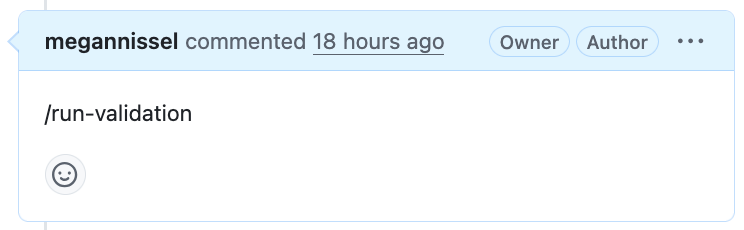
This will trigger an action that closes and re-opens the PR, causing tests to run again. You can also manually close and then re-open the PR.
Once tests pass:
After your PR has passed automated validation, the bot will add a comment to the PR that
includes several pieces of metadata extracted from your pyproject.toml, to facilitate
easy review. At this stage, the team of reviewers will also receive a ping. The aim is to
review plugins promptly (usually within 5 working days of submission), but please keep in
mind the maintainer team is small. Please note that the reviewers will not be completing
a code review; rather, they will be checking submissions for context / subject relevance.
Specifically, they will evaluate based on the following questions:
Did you include all of the information required by the template in the body of your pull request?
Does the plugin have to do with nature and/or nature’s benefits to people? Or does the plugin appear to be something quite unrelated, e.g. tax software?
Does the plugin have documentation? Does the documentation look relevant to the plugin’s description?
Is the plugin’s name unique and appropriate? Does it adhere to the Code of Conduct? (It’s generally recommended to give your plugin a name that’s related to what it does. Don’t call your plugin “banana” unless it’s modeling something about bananas!)
If you would like to view the exact rubric the reviewers use, you may do so here.
Step 5: Address any review comments
If your plugin fails review for any reason, the reviewer will leave a review on the PR tagging you and explaining why the plugin failed to meet the criteria. Please address any required changes and update the GitHub release with those changes. Leave a comment on the PR tagging your reviewer to let them know you’ve addressed the feedback. Don’t open a new PR.
Once your plugin passes review, the reviewer will merge the PR and your plugin will be available for other users to discover and install from the registry!
Updating your plugin version
In Development
The process for updating a plugin version is still in active development. Once the process has been finalized, this documentation will be updated.
If your plugin is already included in the Registry and you would like to update the version, please open an Issue in the Registry’s GitHub Repo and the maintainer team will work with you to do so.