Plugin Installation
Important
As with any third-party software, installing a plugin for use with InVEST may pose a risk to your data, computer, and/or network. Please make sure you trust the authors of the plugin you are installing. The NatCap Alliance does not take any responsibility for registered plugins. To learn more about what the maintainers of this registry do to help prevent harmful plugins, refer to the Security Policy.
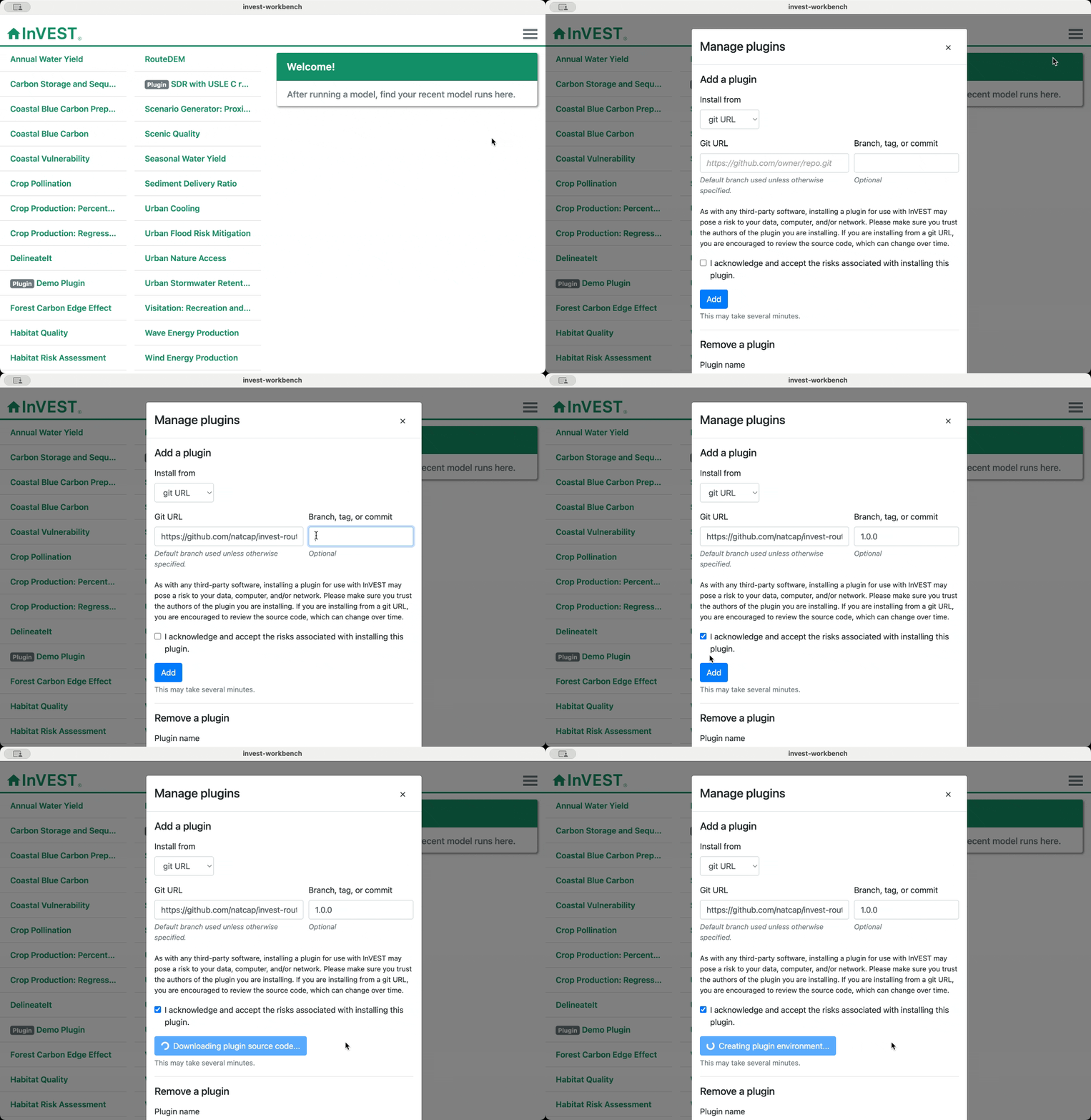
Once you’ve found a plugin that you’d like to use, you can install it from the InVEST Workbench. To do so:
Click the hamburger menu in the upper right-hand corner of the Workbench and select “Manage Plugins.”
Paste in the Git URL and version of the plugin. It’s recommended to use the version listed in the plugin registry; since this is the most recent version the plugin author submitted, it’s likely to be a stable release that the author feels is ready for community use!
Read the acknowledgement and check the box to accept.
Click the “Add” button. This will begin the installation process. Please note that it may take several minutes for the plugin to install.
Once the plugin has installed successfully, you can close the Manage Plugins window. You should see the plugin listed alongside the core InVEST models in the Workbench.